
iPhone Screen Time Guide: Everything You Need to Know
Author: John, ScreenBuddy Founder
Screen Time is Apple's built-in tool for tracking and limiting how you use your iPhone. Apple introduced it in iOS 12 back in 2018, and it's been a core feature ever since.
This guide covers everything: how to set it up, what each feature actually does, and the limitations Apple doesn't advertise. Whether you're a parent managing a child's device or someone trying to cut your own screen time, you'll find what you need here.
Here's the honest truth upfront: Screen Time is a solid starting point for managing phone use. It's free, built-in, and easy to set up. But it has real limitations, especially if you're trying to control your own habits rather than a child's device. This guide covers everything Screen Time can do, plus what to do when it's not enough.
KEY TAKEAWAYS
Screen Time tracks app usage, pickups, and notifications across all your Apple devices
App Limits and Downtime let you restrict when and how long you use specific apps
The "Ignore Limit" option makes Screen Time nearly useless for self-control unless you enable a hidden setting
Even with "Block at End of Limit" enabled, you still know your own passcode
Third-party apps exist specifically because Screen Time's limitations are well-known
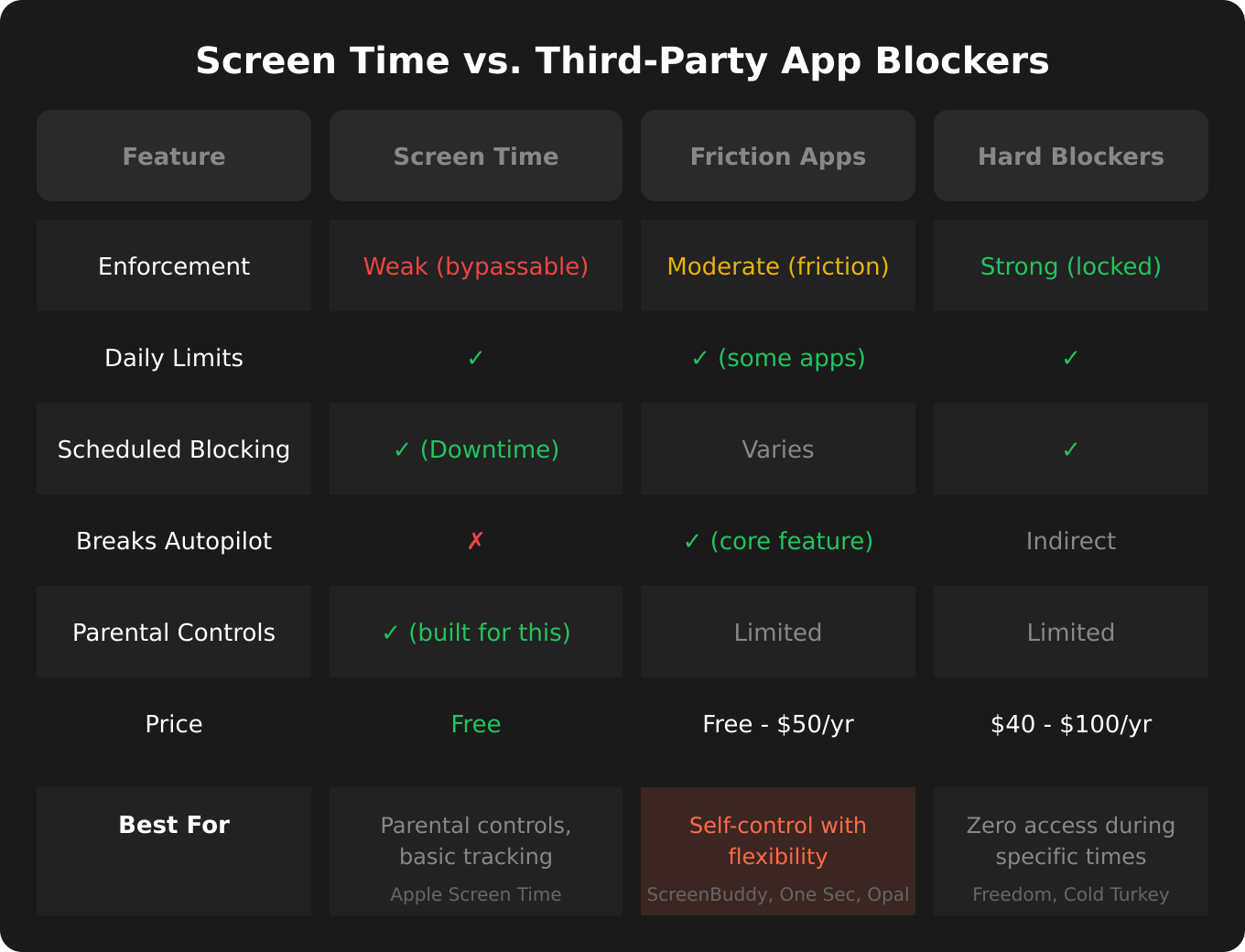
Comparison table showing Screen Time vs friction apps vs hard blockers
What Is Screen Time?
Screen Time is Apple's built-in feature for monitoring and managing device usage on iPhone, iPad, and Mac. You'll find it in Settings > Screen Time.
It does three main things:
Tracking. Screen Time logs how much time you spend in each app, how many times you pick up your phone, and which apps send you the most notifications. You get a weekly report summarizing all of this.
Limiting. You can set daily time limits on specific apps or entire categories (like Social Media or Games). You can also schedule Downtime, which blocks most apps during set hours.
Restricting. Content & Privacy Restrictions let you block explicit content, prevent app purchases, and limit who can be contacted. This is primarily designed for parental controls.
If you use the same Apple Account across multiple devices, Screen Time syncs your data and settings across all of them. Hit your Instagram limit on your iPhone, and it's blocked on your iPad too.
How to Set Up Screen Time
Setting up Screen Time takes about two minutes. Here's how to do it.
Enabling Screen Time
Open Settings on your iPhone
Scroll down and tap Screen Time
Tap Turn On Screen Time
Choose This is My iPhone or This is My Child's iPhone
If you select "This is My Child's iPhone," you'll be guided through additional parental control options.
Setting a Screen Time Passcode
After enabling Screen Time, you'll be asked to create a four-digit passcode. This passcode locks your Screen Time settings and (theoretically) prevents you from bypassing limits.
Here's the catch: if you set your own passcode, you know it. You can change it anytime. There's no "strict mode" that locks you out. This is the first hint that Screen Time wasn't designed for self-control.
For parental controls, the passcode works well because the child doesn't know it. For adults trying to limit themselves, it's essentially honor-system enforcement.
Setting Up for Yourself vs. for a Child
If you're setting up Screen Time for yourself, you'll configure limits directly on your device.
If you're setting up Screen Time for a child, you have two options:
Family Sharing: Set up Screen Time remotely from your own device. You can approve time requests, view reports, and change settings without touching the child's phone.
Direct setup: Configure Screen Time directly on the child's device by selecting "This is My Child's iPhone" during setup.
Family Sharing is the better option if you have it configured, since you can manage everything from your own phone.
Screen Time Features Explained
Screen Time has six main features. Here's what each one does and when to use it.
Downtime
Downtime blocks all apps except the ones you specifically allow during scheduled hours. When Downtime is active, blocked apps appear dimmed on your Home Screen with an hourglass icon.
How to set it up:
Go to Settings > Screen Time > Downtime
Toggle on Scheduled
Set your start and end times
Customize by day if needed (different schedules for weekdays vs. weekends)
The critical setting: There's a toggle called Block at Downtime. If this is off, your Downtime limits are just suggestions. You can tap "Ignore" and keep using apps. Turn this on and set a passcode to actually enforce Downtime.
Best use case: Blocking apps at bedtime or during work hours. Set Downtime from 10pm to 7am to keep yourself off social media before sleep.
App Limits
App Limits let you set daily time limits on specific apps or entire categories. Once you hit the limit, the app is blocked for the rest of the day (in theory).
How to set it up:
Go to Settings > Screen Time > App Limits
Tap Add Limit
Select a category (Social, Games, Entertainment) or tap into a category to select specific apps
Tap Next and set your daily time limit
Customize by day if you want different limits on weekends
The critical setting: Just like Downtime, there's a toggle called Block at End of Limit. This setting is buried inside each individual app limit. If it's off, you'll see "Ignore Limit" when your time runs out, and you can keep using the app with no consequences. Turn this on for each limit you set.
Best use case: Limiting social media to 30 minutes or an hour per day. Set limits on Instagram, TikTok, Twitter/X, or whatever apps eat most of your time.
Communication Limits
Communication Limits restrict who you (or your child) can communicate with during Downtime and allowed screen time. This applies to Phone, FaceTime, Messages, and iCloud contacts.
How to set it up:
Go to Settings > Screen Time > Communication Limits
Set limits for During Screen Time (normal hours)
Set limits for During Downtime (restricted hours)
Choose between Everyone, Contacts Only, or Specific Contacts
Best use case: This is primarily a parental control feature. Parents can ensure kids can only contact approved family members during Downtime, for example.
Always Allowed
Always Allowed lets you choose which apps remain accessible even during Downtime. By default, Phone, Messages, FaceTime, and Maps are always allowed.
How to set it up:
Go to Settings > Screen Time > Always Allowed
Tap the green + button next to apps you want to allow
Tap the red - button to remove apps from the allowed list
You can also specify which contacts are allowed to reach you during Downtime from this screen.
Best use case: Ensuring essential apps like Phone or Maps are never blocked, even during scheduled Downtime.
Content & Privacy Restrictions
Content & Privacy Restrictions is where the parental controls live. You can block explicit content, prevent app purchases, restrict web browsing, and more.
Key restrictions you can set:
iTunes & App Store Purchases: Prevent installing or deleting apps, or require a password for purchases
Allowed Apps: Hide built-in apps like Safari, Camera, or FaceTime entirely
Content Restrictions: Block explicit music, movies, books, and apps based on age ratings
Web Content: Limit adult websites or allow only specific approved sites
Privacy: Prevent changes to location services, contacts, photos, and more
How to prevent app deletion: Go to Content & Privacy Restrictions > iTunes & App Store Purchases > Deleting Apps > Don't Allow. This stops you (or your child) from deleting an app to reset its usage data.
How to block specific websites: Go to Content & Privacy Restrictions > Content Restrictions > Web Content > Limit Adult Websites. Then add specific URLs under "Never Allow."
Best use case: Parental controls for children's devices, or preventing yourself from reinstalling apps you've deleted.
Screen Time Reports
Screen Time generates daily and weekly reports showing how you use your device.
What the reports show:
Total screen time per day and week
Most-used apps ranked by time
Number of pickups (how often you check your phone)
Number of notifications by app
First app used after pickup
How to view reports:
Go to Settings > Screen Time
Tap See All App & Website Activity
Toggle between Week and Day at the top
Tap Devices to see usage for specific devices
You can also add a Screen Time widget to your Home Screen for quick access to your daily stats.
Best use case: Identifying which apps consume most of your time and which ones send the most notifications. This data helps you decide where to set limits.
Screen Time Settings Deep Dive
Beyond the main features, there are a few settings that most guides skip. These matter.
Screen Time Passcode
The Screen Time passcode is separate from your iPhone's lock screen passcode. It protects your Screen Time settings and controls whether limits can be bypassed.
To set or change it:
Go to Settings > Screen Time
Tap Lock Screen Time Settings (or Change Screen Time Passcode if one exists)
Enter a four-digit code
Enter your Apple Account credentials for recovery
To recover a forgotten passcode:
Go to Settings > Screen Time > Change Screen Time Passcode
Tap Forgot Passcode?
Enter your Apple Account credentials
Set a new passcode
The self-control problem: If you set your own passcode, you know it. When that limit hits and you want "just five more minutes," nothing stops you from entering the code. The only workaround is having someone else set the passcode for you, which is awkward and impractical for most adults.
Share Across Devices
This setting syncs your Screen Time data and settings across all devices signed into the same Apple Account.
How to enable it:
Go to Settings > Screen Time
Scroll down and toggle on Share Across Devices
Why it matters: Without this, you could hit your Instagram limit on your iPhone and just switch to your iPad. With it enabled, hitting the limit on one device blocks the app on all devices.
Requirements: All devices must be signed into the same Apple Account and have iCloud enabled.
Family Sharing Integration
If you're a parent managing Screen Time for children, Family Sharing lets you do everything remotely.
What you can do from your own device:
View your child's Screen Time report
Approve or decline "Ask For More Time" requests
Change app limits and Downtime schedules
Adjust Content & Privacy Restrictions
To manage a child's Screen Time:
Go to Settings > Screen Time
Under Family, tap your child's name
Adjust any settings
Time extension requests appear as notifications on your device. You can approve or decline without touching the child's phone.
The Limitations of Screen Time
Most Screen Time guides are just tutorials. They show you how to enable features but don't mention that those features might not work the way you expect. Here's what Apple doesn't advertise.
The "Ignore Limit" Problem
When you hit an app limit, Screen Time shows a screen with two options: Remind Me in 15 Minutes or Ignore Limit for Today.
Tap either one, and you're back in the app. No passcode required. No friction. Just tap and scroll.
This makes Screen Time nearly useless for self-control. The limit isn't a barrier; it's a polite suggestion. If you're someone who struggles with phone use, a polite suggestion is exactly what you've been ignoring for years.
Why Apple designed it this way: Screen Time was built primarily for parental controls, not adult self-management. For parents, the passcode requirement (via the "Block at End of Limit" setting) means kids can't bypass limits. For adults setting their own limits, Apple apparently assumed willpower would be enough.
The Hidden "Block at End of Limit" Setting
There's a setting that makes limits stricter, but most people don't know it exists. It's called Block at End of Limit, and it's buried inside each individual app limit.
How to enable it:
Go to Settings > Screen Time > App Limits
Tap on an existing limit
Enter your Screen Time passcode
Toggle on Block at End of Limit
With this enabled, "Ignore Limit" disappears. Instead, you see Ask For More Time, which requires entering your Screen Time passcode.
Here's the problem: you set that passcode. You know it. When the limit hits and you want to keep scrolling, you'll enter the code. There's nothing stopping you except your own willpower, which is exactly what failed in the first place.
I didn't even know this setting existed until I started researching Screen Time limitations. It's not mentioned during setup. It's not enabled by default. Apple buries the one setting that makes limits enforceable.
App-Level Limitations
Screen Time can't tell the difference between productive and unproductive use of the same app.
Example: You use Instagram for 20 minutes posting content for your business, then spend 40 minutes scrolling Reels. Screen Time counts all 60 minutes the same. There's no way to limit "browsing Instagram" while allowing "posting to Instagram."
Safari is especially problematic: You can set a limit on Safari, but it's all-or-nothing. Block Safari and you lose access to all websites, including ones you need for work. There's no way to block specific time-wasting sites while keeping useful ones accessible within Screen Time itself.
Notification Loopholes
Even during Downtime, notifications still appear on your lock screen. You can read them, and in many cases, you can respond directly from the notification without "opening" the app.
Example: Instagram is blocked during Downtime. You get a DM notification. You can read the message preview on your lock screen and reply right there. Screen Time doesn't count this as "using Instagram" because you never opened the app.
Widgets work similarly. A blocked app's widget can still display content on your Home Screen.
Known Bypass Methods
Screen Time has been around since 2018, and people (especially kids) have found numerous ways around it:
Changing date and time: Setting the date forward resets app limits. Setting it back can extend limits indefinitely.
Reinstalling apps: Deleting and reinstalling an app resets its usage data, effectively giving you a fresh limit.
Using Safari instead of apps: Hit your YouTube app limit? Go to youtube.com in Safari.
iMessage app drawers: Some apps can be accessed through iMessage without "opening" them.
Restarting the phone: Some users report a brief window after restart where limits don't apply.
Parents can prevent some of these (disable app installation, set date/time automatically) but not all. Adults trying to limit themselves have no real defense.
When Screen Time Isn't Enough
If you've tried Screen Time and keep bypassing your own limits, you're not alone. Third-party apps exist specifically because Screen Time's limitations are well-known.
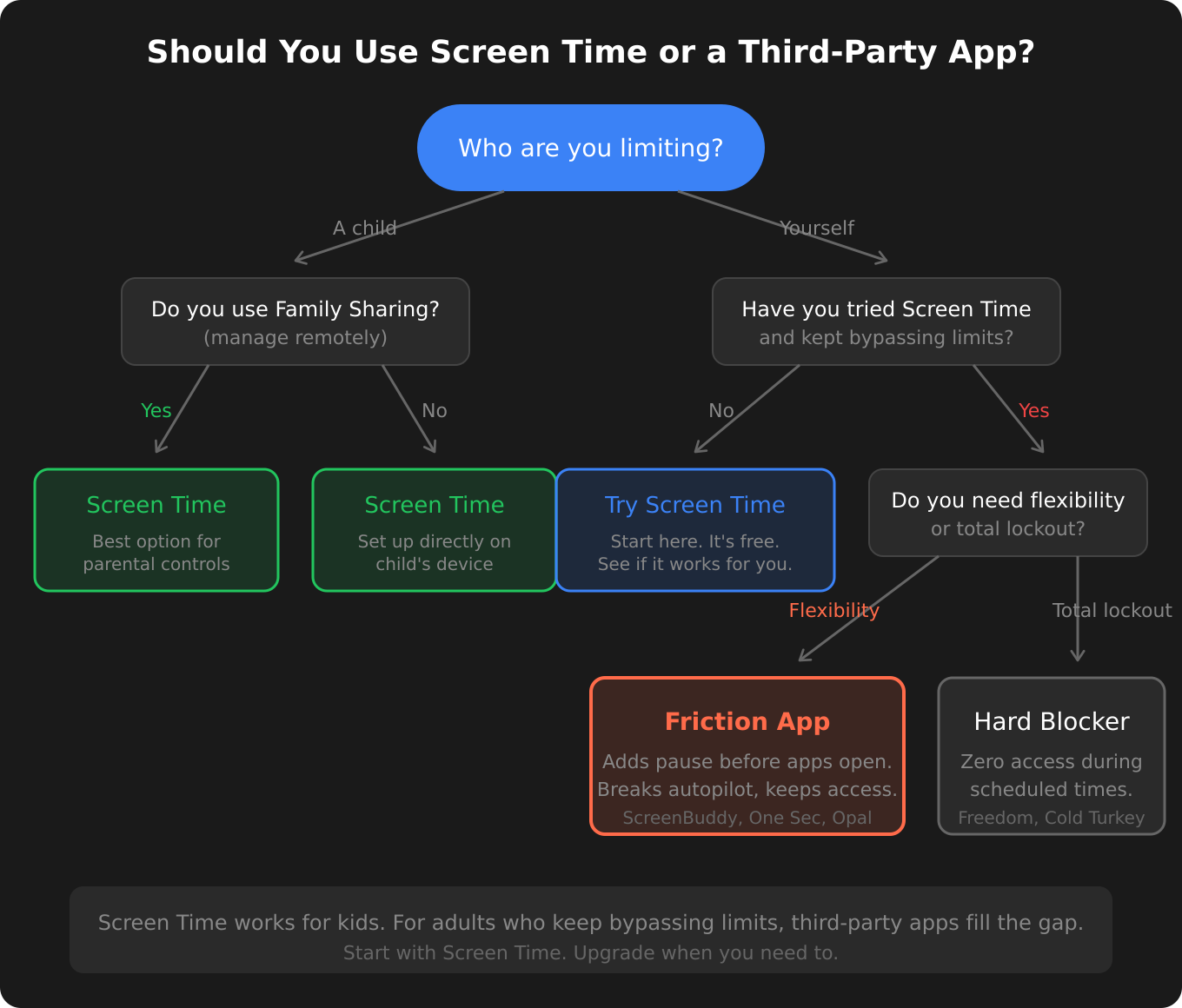
Flowchart helping readers choose between Screen Time and third-party apps.
Third-Party Alternatives
The market for screen time apps falls into three categories:
Hard blocking apps like Freedom and Cold Turkey completely block apps or websites during scheduled times. No bypass options, no passcodes you can override. These work well if you need zero access during certain hours, but they can be inflexible.
Friction-based apps like ScreenBuddy, One Sec, and Opal add a pause or delay before you can access apps. Instead of blocking outright, they make you wait or complete a step before opening the app. This breaks the autopilot reach without completely cutting off access.
Accountability apps add social features, letting friends see your usage or sending reports to an accountability partner. These work if external pressure motivates you.
Why I Switched to Friction-Based Blocking
I used Screen Time for months. I'd set limits, hit them, tap "Ignore," and feel bad about it. The tool was working exactly as designed; it just wasn't designed for what I needed.
Instagram was my first target. Then I expanded to Twitter/X, Reddit, YouTube, Snapchat. Same pattern every time. Set the limit, hit the limit, ignore the limit. Early on I'd tap "Remind Me in 15 Minutes" a few times, like I was negotiating with myself. Eventually I just went straight to "Ignore Limit for Today" without even hesitating.
I switched to a friction-based approach. Instead of hard limits I could bypass, I added a 25-second pause before my problem apps opened. That pause was enough to break the autopilot reach. I wasn't fighting the app; I was just giving myself a moment to decide.
The result: I went from almost 7 hours of daily screen time to under 3 hours. That's a 55% reduction.
That's why I built ScreenBuddy. It uses the friction approach that worked for me. Apps are locked by default. When you try to open one, you wait 25 seconds. You can still access the app, but the pause breaks the mindless habit. Custom daily limits let you set a budget for how much time you spend, without the complete blocking that leads to workarounds.
How to Choose a Third-Party App
Different approaches work for different people:
Choose hard blocking if: You need zero access during certain times (work hours, bedtime) and you trust yourself not to uninstall the app.
Choose friction-based blocking if: You want flexibility with accountability. You can still access apps when you genuinely need them, but the added step breaks the autopilot.
Choose accountability features if: External motivation works for you. Knowing a friend can see your usage or getting weekly reports sent to someone else keeps you honest.
For a detailed comparison of options, see our guide to apps to stop doomscrolling or best apps to limit social media.
Troubleshooting Screen Time
Screen Time doesn't always work as expected. Here are fixes for common problems.
Screen Time Limits Not Working
If apps aren't being blocked when they should be:
Check "Block at End of Limit": Go to Settings > Screen Time > App Limits, tap each limit, and make sure this toggle is on.
Check "Share Across Devices": If it's enabled, make sure all devices are updated and signed into the same Apple Account. Sync issues can cause limits to not apply correctly.
Restart your iPhone: Sometimes a restart clears whatever glitch is preventing limits from working.
Sign out and back into iCloud: Go to Settings > [Your Name] > Sign Out, then sign back in. This forces Screen Time to resync.
Delete and recreate limits: Remove the problematic app limit entirely, then set it up again from scratch.
For more fixes, see our post on Screen Time not working.
Forgot Screen Time Passcode
If you've forgotten your Screen Time passcode:
Go to Settings > Screen Time
Tap Change Screen Time Passcode
Tap Forgot Passcode?
Enter your Apple Account credentials
Create a new passcode
If you didn't set up Apple Account recovery during initial setup, or if you're locked out of your Apple Account, you may need to contact Apple Support for help.
Screen Time Showing Incorrect Data
If your reports seem wrong:
Wait for sync: Screen Time data can take a few minutes to update, especially across devices.
Check "Share Across Devices": If enabled, make sure all devices are online and connected to iCloud.
Force a sync: Toggle "Share Across Devices" off and on again.
Check date and time: If your phone's date or time is set manually (not automatic), Screen Time may not track correctly. Go to Settings > General > Date & Time and enable "Set Automatically."
Frequently Asked Questions
Is Screen Time accurate?
Generally yes, but with caveats. Screen Time tracks time that an app is open in the foreground. If you open Instagram, switch to another app, then switch back, it's tracking that as active use.
There can be delays in reporting, especially when syncing across devices. Daily totals may not update instantly. Some users report minor discrepancies between what they remember doing and what Screen Time shows, but it's usually close.
Can Screen Time block websites?
Yes, through Content & Privacy Restrictions.
Go to Settings > Screen Time > Content & Privacy Restrictions > Content Restrictions > Web Content. Choose "Limit Adult Websites" and add specific URLs under "Never Allow" to block them.
You can also choose "Allowed Websites" to create a whitelist of approved sites while blocking everything else.
Does Screen Time work on Mac?
Yes. Screen Time is available on Mac (macOS Catalina and later) and syncs with your iPhone if you enable "Share Across Devices" on both.
On Mac, go to System Settings > Screen Time to access the same features: App Limits, Downtime, and reports.
Can my child bypass Screen Time?
Unfortunately, yes. Kids are resourceful, and Screen Time has known workarounds:
Changing the device's date and time
Reinstalling apps to reset limits
Using Safari to access web versions of blocked apps
Accessing content through iMessage app drawers
Using workarounds shared on Reddit and TikTok
You can make bypassing harder by disabling app installation/deletion, setting date/time to automatic, and limiting web content. But determined kids often find a way.
What's better than Screen Time for self-control?
Third-party apps designed for adult self-management. Screen Time was built primarily for parental controls, so adults trying to limit their own use hit design limitations quickly.
Friction-based apps like ScreenBuddy add a pause before you can access apps, which breaks the autopilot habit without completely blocking access. Hard-blocking apps like Freedom block access entirely during set times.
For a comparison of options, see our guide to how to stop doomscrolling.
Bottom Line
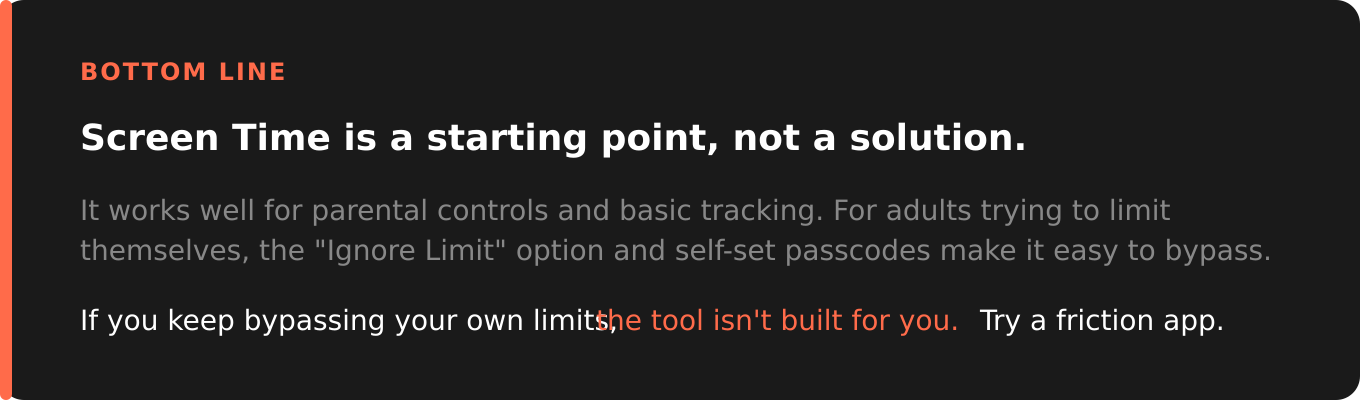
Bottom line summary stating Screen Time is a starting point, not a solution, with a call to try a friction app if you keep bypassing your own limits.
Screen Time is worth setting up. It's free, it's built-in, and the reports alone are valuable for understanding how you actually use your phone. You might be surprised by which apps eat the most time.
For parental controls, Screen Time works reasonably well. The passcode system means kids can't easily bypass limits (though some workarounds exist). Family Sharing makes remote management convenient.
For adults trying to control their own habits, Screen Time has fundamental design limitations. The "Ignore Limit" option, the passcode you set yourself, the lack of real enforcement: these aren't bugs. They're features that make Screen Time unsuitable for serious self-control.
If you've tried Screen Time and keep bypassing your limits, you're not the problem. The tool just wasn't built for self-control. ScreenBuddy is. It's free to download on the App Store.
