
How to Block Apps on iPhone: The Complete Guide
By John, ScreenBuddy Founder
Blocking apps on your iPhone sounds simple until you try it. Screen Time has an "Ignore Limit" button. Focus Mode is easy to turn off. And deleting apps only works until you reinstall them at 11pm when your willpower is shot.
There are five ways to block apps on iPhone: Screen Time (App Limits and Downtime), Focus Mode, Content & Privacy Restrictions (to block downloads), third-party app blockers, and accountability-based methods like having someone else set your passcode. This guide covers all five, from Apple's built-in tools to options that are actually hard to bypass.
KEY TAKEAWAYS: How to Block Apps on iPhone
Use Built-in Screen Time for Basic Limits: Set "App Limits" for specific durations or use "Downtime" to block most apps during scheduled hours (like bedtime). However, these are easy to bypass using the "Ignore Limit" button.
Leverage Focus Modes to Hide Distractions: Create custom Focus Modes (like "Work" or "Study") to hide specific Home Screen pages. This doesn't lock apps, but removes the visual temptation.
Disable the App Store to Prevent Reinstalling: To stop the cycle of deleting and reinstalling apps, use "Content & Privacy Restrictions" to disable app downloads and deletions entirely.
Introduce "Friction" to Break Habits: For compulsive scrolling, use third-party apps like One Sec or ScreenBuddy. Instead of a hard block, these force a "mindful pause" before an app opens, which can reduce screen time by over 50%.
Apply "Hard" Blocks for Maximum Strictness: If you lack willpower to stick to limits, use third-party blockers like Opal, Freedom, or AppBlock. These offer "Strict Modes" that make it nearly impossible to cancel a blocking session.
Remove Your Ability to Cheat: The most effective way to hard block an app is to have someone else set your Screen Time passcode. This prevents you from tapping through restrictions when willpower is low.
Why Block Apps on Your iPhone?
People want to block apps for different reasons, and the best method depends on what you're trying to accomplish.
Productivity and focus. You're trying to finish a project or study for an exam without checking Twitter every three minutes.
Digital wellness. The average American spends over 4 hours daily on their phone, and much of that time disappears into social media feeds that leave you feeling worse than before.
Parental controls. You want to protect your kids from inappropriate content or limit screen time. This requires a different approach because kids are remarkably good at finding workarounds.
Breaking compulsive habits. You just want to interrupt the automatic muscle memory that has you opening Instagram 47 times a day without thinking.
Reducing distractions at specific times. Bedtime scrolling is destroying your sleep. Or you keep checking your phone during dinner.
Different goals need different tools. Someone setting up parental controls needs a passcode-protected system. Someone trying to reduce doomscrolling might do better with friction-based blocking. Keep your specific goal in mind as we go through these methods.
Method 1: Block Apps on iPhone with Screen Time
Screen Time is Apple's built-in tool for managing app usage. It's free, it's already on your iPhone, and it's a reasonable starting point for most people. For complete details, see Apple's official Screen Time guide.
How to Set Up App Limits
Open Settings and tap Screen Time
If you haven't enabled Screen Time, tap Turn On Screen Time and follow the prompts
Tap App Limits, then tap Add Limit
Select individual apps or entire categories (Social, Games, Entertainment, etc.)
Set your daily time limit using the scroll wheels
Toggle on Block at End of Limit
Tap Add in the top right corner
Once you hit your limit, the app icon grays out and a notification tells you time's up. You can select multiple apps or categories in a single limit, which is useful if you want to give yourself a combined 30 minutes for all social media rather than 30 minutes per app.
How to Block Apps Completely with Downtime
Downtime is different from App Limits. Instead of tracking how long you use apps, it blocks everything except apps you specifically allow during scheduled hours.
Go to Settings > Screen Time > Downtime
Toggle on Scheduled or tap Turn On Downtime Until Tomorrow for immediate blocking
Set your start and end times (for example, 10pm to 7am)
Go back to Screen Time and tap Always Allowed
Add any apps you need during Downtime (Phone, Messages, Maps, etc.)
During Downtime, blocked apps show a gray hourglass icon. This works well for creating phone-free evenings or protecting your morning routine from the pull of email and social media.
The Problem with Screen Time
Here's what Apple doesn't advertise: Screen Time is easy to bypass.
When you hit an App Limit, you see two buttons: "OK" and "Ignore Limit." Tap Ignore Limit and you can choose to extend by 15 minutes or ignore the limit for the entire day. There's no friction, no waiting period, nothing stopping you from tapping through.
You can set a Screen Time passcode to prevent bypassing, but if you set your own passcode, you already know it. That defeats the purpose for self-control. The passcode approach works much better for parental controls, where a parent sets a code the child doesn't know.
Screen Time is a good starting point. It raises awareness of your usage patterns and creates a small speed bump. But if you're serious about blocking apps and you're the one who set up the restrictions, you'll probably need something stricter.
Method 2: Using Focus Mode
Focus Mode hides apps and silences notifications during specific activities. Think of it as context-switching for your phone: a Work focus that only shows productivity apps, a Sleep focus that hides everything except your alarm.
How to Set Up a Custom Focus Mode
Go to Settings > Focus
Tap + to create a new Focus
Choose Custom and name it (Work, Study, etc.)
Under Customize Screens, choose which Home Screen pages are visible
Under Silence Notifications, choose which people and apps can reach you
The key feature: hiding apps from your Home Screen entirely. When you're in Work mode, Instagram and TikTok disappear from view. You can also schedule Focus Modes to activate automatically based on time or location.
Limitations of Focus Mode
Focus Mode's main weakness: it's easy to turn off. Two taps in Control Center and it's disabled.
Apps aren't truly blocked. They're hidden. If you're determined to open TikTok, you'll find it through search. Focus Mode works best for reducing notifications and creating visual separation between work and personal time. It's less effective for people who struggle with compulsive app checking.
Method 3: Blocking Apps from Being Downloaded
Sometimes the problem isn't apps you already have. It's the apps you keep reinstalling after you delete them.
Content & Privacy Restrictions let you disable the App Store entirely, prevent deleting apps, and block specific types of content.
How to Block App Store Access
Go to Settings > Screen Time > Content & Privacy Restrictions
Toggle on Content & Privacy Restrictions
Tap iTunes & App Store Purchases
Set Installing Apps to Don't Allow
The App Store icon disappears from your Home Screen. You won't be able to download anything new until you reverse this setting.
This is particularly useful for parents who want to approve every app before it lands on their child's phone. It's also helpful for adults who keep reinstalling the same apps they deleted in a moment of weakness.
How to Prevent Deleting Apps
Under the same menu, you can set Deleting Apps to Don't Allow. This prevents removing apps entirely. Combined with Screen Time limits on those apps, this locks everything in place.
Restricting Content Types
Content & Privacy Restrictions also lets you filter content by age rating:
Go to Content & Privacy Restrictions > Content Restrictions
Tap Apps and select an age rating (4+, 9+, 12+, 17+)
Apps outside that rating become hidden
This is a blunt tool. If you restrict to 12+ apps, every app rated 17+ disappears, whether that's a game, a social app, or something you actually need. It's most useful for parental controls rather than adult self-control.
The downside of all these approaches: if you know the Screen Time passcode, you can undo any of these restrictions in about 30 seconds. For parents managing a child's device, that's fine. For adults managing themselves, you'll want something more robust.
Method 4: Third-Party App Blockers
When Apple's built-in tools aren't strict enough, third-party app blockers offer more control. These apps use Apple's Screen Time API but add features like harder-to-bypass blocking, accountability partners, and different blocking philosophies.
There are two main approaches to app blocking:
Hard blocking completely prevents access to apps during a session. You can't open the app at all until the timer ends.
Friction-based blocking makes you pause and think before opening an app. The app isn't locked, but you have to wait, breathe, or answer a question before accessing it.
Hard blocking works well for scheduled focus sessions. Friction-based blocking works better for breaking unconscious habits throughout the day. For step-by-step instructions on blocking specific apps, like TikTok, see our guide on how to block TikTok on iPhone.
Comparing Popular App Blockers
Opal is one of the most popular options. It creates "focus sessions" where you can block apps and websites for scheduled periods. The app has gamification features like focus scores and achievements. Opal's Deep Focus mode is hard to bypass, though it requires the paid plan (~$100/year). Free version is limited to one recurring session.
Freedom works across all your devices, not just iPhone. Start a blocking session on your phone, and it also blocks distractions on your Mac, PC, and browser. Freedom's Locked Mode prevents ending sessions early. Pricing is around $40/year, with a $199 lifetime option. The multi-device sync is its biggest strength.
One Sec takes the friction approach. Instead of blocking apps, it forces you to take a deep breath before opening them. You see how many times you've tried to open the app today, then choose whether to continue. Studies show it reduces social media use by about 57% on average. Free for one app, around $20/year for unlimited.
AppBlock offers scheduling, location-based blocking, and a Strict Mode that prevents you from changing settings. It's particularly strong on Android but also works on iPhone. Free tier has limitations; premium runs about $40/year.
For a detailed comparison of pricing and features, see our guide to the best apps to limit social media and apps to stop doomscrolling.
How ScreenBuddy Works
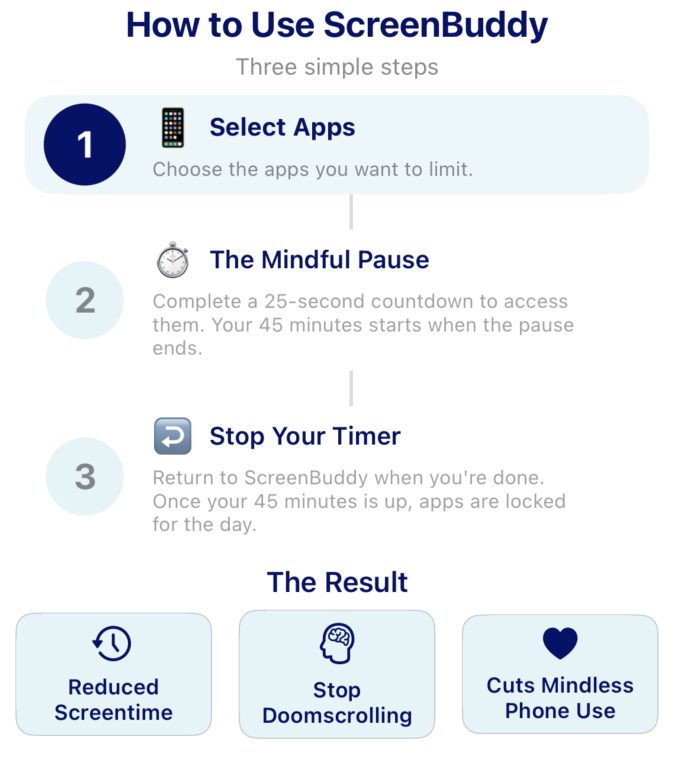
Infographic explaining how ScreenBuddy works in three steps with icons for each step and results showing reduced screen time, stop doomscrolling, and cuts mindless phone use
I built ScreenBuddy because I was spending nearly 7 hours a day on my phone and couldn't stop.
Screen Time didn't work. I'd blow past the limits every single day. Hard blockers felt too restrictive. I needed my phone for work, and completely locking out apps created more problems than it solved.
ScreenBuddy uses what I call intelligent friction. Apps on your block list are protected 24/7. When you try to open them, you see a 25-second countdown. You can't skip it. You can't speed it up. You just wait.
That pause breaks the automatic loop. Instead of unconsciously opening Instagram for the 30th time, you have 25 seconds to ask yourself: do I actually want this right now?
You also set a daily limit. Separate caps for weekdays and weekends, up to 2 hours per day. Once you hit your limit, your apps lock until midnight with no override button. This forces you to be intentional about when you really want to use distracting apps versus when you're just filling time.
After seven weeks using this approach, my daily screen time dropped from 6 hours 53 minutes to 3 hours 5 minutes. That's a 55% reduction without feeling like I was fighting my phone constantly.
One thing I learned along the way: blocking apps is only part of the solution. A few weeks in, I realized I'd replaced scrolling Instagram with scrolling LinkedIn. Same behavior, different app. I kept getting pulled in by notifications that turned out to be pointless. So I added LinkedIn to my block list too.
The real challenge is figuring out what to do with the hours you reclaim. Walking, cooking, stretching, reading, actual hobbies. You're not just blocking apps. You're creating space for a different kind of life.
What to Look for in an App Blocker
When choosing an app blocker, consider:
How strict do you need? If you're the type who'll bypass any restriction you can, look for Strict Mode features with waiting periods or accountability partner unlocks.
Session-based vs. always-on? Some apps block during scheduled focus sessions. Others (like ScreenBuddy) protect apps 24/7 with friction. Pick the model that matches your problem.
What devices do you need covered? If distraction just moves from phone to laptop, a cross-platform solution like Freedom makes sense.
What's the price? Free tiers usually have meaningful limitations. Paid plans range from about $20 to $100 per year. Some offer lifetime purchases.
Method 5: The "Nuclear Option"
Some people need more than app blockers. If you've tried everything and still can't stop bypassing your own restrictions, these approaches remove your ability to cheat.
Have Someone Else Set Your Passcode
The simplest nuclear option: have a trusted friend, spouse, or family member set your Screen Time passcode without telling you what it is.
Write down the passcode and seal it in an envelope. Put that envelope somewhere inconvenient. You can still access it in an emergency, but you'll have to really want it.
This works surprisingly well because it adds real friction. You're not just tapping "Ignore Limit." You're calling your friend, admitting you want to cheat, and asking them to unlock your phone. Most people won't do that for a casual scroll.
Accountability Partner Features
Several app blockers offer accountability features:
Freedom has team plans where someone else can monitor your blocked sessions. AppBlock's Strict Mode can require someone else's approval to unlock. Some apps let a partner control your settings remotely.
This adds a social element to accountability. Knowing someone else will see that you bypassed your blocks changes the calculation.
Physical Solutions
When software fails, hardware works:
Phone lockboxes are timed safes for your phone. Put your phone in, set the timer, and you physically can't access it until the timer expires.
Leave your phone in another room. Simple, free, and remarkably effective. Charge it overnight in the kitchen instead of on your nightstand.
Who This Is For
The nuclear options are for people who have tried gentler approaches and keep bypassing them, are serious about breaking phone addiction, or have compulsive behaviors that require external accountability.
There's no shame in needing strong measures. The goal isn't self-punishment. It's creating an environment where healthy phone use becomes the default.
How to Block Apps on iPhone: Which Method Is Right for You?
For light discipline: Start with Screen Time's App Limits and Downtime. It's free, built-in, and good enough for awareness and gentle nudges.
For scheduled focus: Focus Mode works well if you need to block distractions during specific activities. Combine with Do Not Disturb for fewer interruptions.
For parental controls: Screen Time with a passcode (that only you know) plus Content & Privacy Restrictions. Add a third-party app for extra monitoring if needed.
For breaking unconscious habits: Friction-based apps like ScreenBuddy or One Sec. These don't block apps completely but interrupt the automatic loop of opening them without thinking.
For serious self-control: A third-party blocker with Strict Mode, possibly combined with an accountability partner. Consider having someone else set your passcodes.
For maximum strictness: Phone lockbox, accountability partner control, and multiple overlapping restrictions. Sometimes you need to make it physically difficult.
Most people should start with built-in tools and escalate if needed. There's no prize for using the strictest possible method. The best approach is the one you'll actually stick with.
Frequently Asked Questions
Can I block apps on iPhone without Screen Time?
Yes. Focus Mode lets you hide apps and silence notifications without using Screen Time at all. Third-party app blockers like ScreenBuddy, Opal, or Freedom provide additional options. You can also use the Shortcuts app to create automations that immediately close certain apps when opened.
How do I block apps at certain times on iPhone?
Screen Time's Downtime feature is built for this. Set a schedule, and everything except your "Always Allowed" apps becomes blocked during those hours. Focus Modes can also be scheduled to activate automatically at specific times. For a complete walkthrough, see our guide on how to block apps at certain times on iPhone.
What's the best app blocker for iPhone?
It depends on what you need. Freedom is best for cross-device blocking. Opal is popular for its polished interface and gamification. One Sec and ScreenBuddy are best for friction-based approaches that break unconscious habits. AppBlock offers strong scheduling and Strict Mode features.
Can I block Safari on iPhone?
Yes. Go to Settings > Screen Time > Content & Privacy Restrictions > Content Restrictions > Web Content. You can limit adult websites, allow only specific websites, or restrict web access entirely. You can also add Safari to an App Limit to restrict how long it can be used each day.
How do I block social media on iPhone?
Multiple approaches work. Set App Limits for the Social category in Screen Time. Use Focus Mode to hide social apps during work hours. Use a third-party blocker for stricter control. Or combine methods: hide apps with Focus Mode, set time limits with Screen Time, and add friction with an app like ScreenBuddy. For a complete walkthrough, see our guide on how to block social media on iPhone.
Bottom Line
Blocking apps on iPhone isn't technically difficult. Apple gives you built-in tools, and dozens of third-party apps offer more control. The real challenge is finding an approach that matches your personality and goals.
Start with Screen Time to understand your patterns. Add Focus Mode for context-based restrictions. If you keep bypassing your own limits, try a third-party app with Strict Mode or friction-based blocking. And if nothing else works, there's no shame in the nuclear option.
The best blocking method is the one you'll actually use. A perfect system you bypass every day accomplishes nothing. An imperfect system you mostly stick with changes your life.
If you want to try the friction-based approach, ScreenBuddy is available to download on the App Store
